Site Migration URL Inventory Template
Site Migration URL Inventory Template
Inventory every legacy URL with its traffic, profit and links, assign a destination and catch risky retirements.
Which legacy URLs carry real value, what happens to each one at launch, and which planned retirements would throw away clicks, revenue or backlinks.
- Excel workbook (.xlsx), opens in Google Sheets
- PDF field guide, 9 to 11 pages
- Blank and worked CSV templates
- DataForSEO import script
Free, no email required. Version 3.0, updated November 2026.
=IF(I13="","",IF(I13<>"Ready","n.a.",IF(AND(E13="Retire",OR(B13>0,C13>0,D13>0)),"Review retirement","Review mapping")))The formula above is the real one from cell L13. Scroll it sideways to read the whole rule.
Connected to the DataForSEO API
This template is designed around one DataForSEO endpoint. Pull the data, convert it with one command, and the workbook does the rest.
DataForSEO On-Page APIA crawl of your site: URLs, status codes, canonicals, inlinks and sitemap membershipon_page/task_post
Save the JSON responseThe full API response, kept as your source of truth.response.json
Run the import scriptOffline. No API calls, no credentials.dataforseo_import.py import --template 07
Paste at A13Dashboard, checks and action list update instantly.Site Migration URL Inventory Template.xlsx
Column map for this template:Filled by the APIAudit trail (automatic)You add
What the site migration URL inventory template decides
Every migration disaster has the same root cause: a URL nobody knew mattered. The page with 30 referring domains that got retired, the old guide that quietly drove a fifth of conversions, the size chart that customers bookmarked. A migration URL inventory exists to make those pages impossible to miss.
This site migration spreadsheet lists each legacy URL with 90-day clicks, profit and referring domains, a disposition (redirect, keep, merge or retire), its destination and an owner. It converts the 90-day totals into daily baselines you can monitor after launch, and flags any page marked Retire that still has clicks, profit or links as Review retirement.
Who it's for
- SEOs planning a redesign, replatform, domain change or URL restructure
- Developers who need a clean list of URLs and destinations
- Ecommerce managers moving between Shopify, WooCommerce, Magento or BigCommerce
- Project managers who need a single migration source of truth
Where it fits in your workflow
The site migration URL inventory template answers one question. These three templates answer the questions around it:
- Redirect Mapping Template: whether each planned redirect actually reaches the approved destination in one permanent hop, on an indexable page whose canonical agrees, with a human sign-off.
- SEO Migration Checklist: whether the migration is safe to launch: which critical controls are still open, who owns them, and what evidence closes them.
- Post-Migration SEO Monitoring Template: whether each migrated section is performing above or below what you'd expect after adjusting for market-wide changes, measured against a control segment that didn't move.
What's inside the download
One ZIP with the workbook, an 8-column input template (blank and filled), the PDF field guide and an offline script that converts saved DataForSEO responses into the input CSV. The workbook has five tabs.
How the site migration spreadsheet calculation works
Baseline clicks / day = 90-day clicks ÷ 90, and the same for profit. These daily baselines become your post-launch benchmark. Value review flags Review retirement when a URL marked Retire has any clicks, profit or referring domains in the window.
The key formula, exactly as it appears in the workbook
=IF(I13="","",IF(I13<>"Ready","n.a.",IF(AND(E13="Retire",OR(B13>0,C13>0,D13>0)),"Review retirement","Review mapping")))
| Result column | Plain-English formula | What it tells you |
|---|---|---|
| Baseline clicks / day | Organic clicks ÷ 90d ÷ 90 | Average daily baseline clicks. |
| Baseline profit / day | Organic profit ÷ 90d ÷ 90 | Average daily baseline contribution. |
| Value review | IF(AND(Disposition="Retire",OR(Organic clicks ÷ 90d>0,Organic profit ÷ 90d>0,Referring domains>0)),"Review retirement","Review mapping") | Highlights retirement of a URL with observed value. |
The results you will see
Review retirementReview mapping
Green meets the checks, red needs fixing first, amber needs a human decision and blue marks an opportunity. Rows with missing or out-of-range inputs are held back in the Input check column until they're fixed, so a half-filled row never sneaks into a total.
How to use the site migration URL inventory template
- Collect every legacy URLCombine a full crawl, XML sitemaps, Search Console pages, analytics landing pages and backlink targets. Deduplicate.
- Join value dataAdd 90-day clicks from Search Console, profit or contribution from analytics, and referring domains from your backlink tool.
- Assign a disposition and destinationChoose Redirect, Keep, Merge or Retire. Every Redirect and Merge needs a destination URL; retirements get N/A.
- Clear every retirement flagOpen the Dashboard action list. Each Review retirement row has value. Redirect it to the closest equivalent or write down why not.
The worked example in the Workspace tab. Clear the lime input cells, paste your CSV at A13 (values only) and every result recalculates.
Fill the site migration URL inventory template with DataForSEO
Every template in this library is built to run on DataForSEO data. This one uses DataForSEO On-Page API: a crawl of your site: URLs, status codes, canonicals, inlinks and sitemap membership.
Most of the data columns fill automatically. Add the business inputs listed below, then paste.
- Request the dataSend this request with your DataForSEO API login (HTTP Basic auth).
POST https://api.dataforseo.com/v3/on_page/task_post [ { "target": "yourdomain.com", "max_crawl_pages": 1000 } ]
Post the crawl task, wait for it to finish, then request on_page/pages with {"id": "<task id>", "limit": 1000} and save that response.
- Save the full JSON responseSave the complete response, not just the task ID, next to the template folder.
- Convert it with the included scriptIt runs offline, makes no API calls and never sees your credentials.
python3 Automation/dataforseo_import.py import --template 07 --input response.json --output my-inputs.csv
- Add what the API can't knowOrganic clicks / 90d, Organic profit / 90d, Referring domains, Disposition, Destination URL, Owner
- Paste at A13Clear the demo rows, paste the CSV values at Workspace cell A13 and the dashboard updates.
| Fills automatically from DataForSEO | You add |
|---|---|
| Page URL | Organic clicks / 90d, Organic profit / 90d, Referring domains, Disposition, Destination URL, Owner |
Source reference fills automatically with the task ID, endpoint, location, language, device and snapshot time, so every row is traceable. Before a big pull, estimate the cost with the DataForSEO pricing calculator. The same steps, plus an example request file, are in the download's Automation folder.
Worked example: Northbeam Outdoor
Every template ships filled with data from Northbeam Outdoor, a fictional outdoor-gear retailer that appears across all 40 workbooks, so you can see what useful output looks like before you add your own. This workbook has 18 example rows.
Five legacy URLs in the example were marked Retire, but several still have links or clicks. One retired product page has $2,100 in 90-day profit, exactly the kind of row that disappears in a big spreadsheet.
Top 10 by baseline profit / day
| # | Page URL | Baseline profit / day |
|---|---|---|
| 1 | https://shop.northbeam.example/collections/womens-boots | $171.11 |
| 2 | https://shop.northbeam.example/products/summit-2p-tent | $140.00 |
| 3 | https://shop.northbeam.example/products/trailblazer-gtx-boot | $101.11 |
| 4 | https://shop.northbeam.example/collections/trail-running | $74.44 |
| 5 | https://shop.northbeam.example/products/hydro-flow-filter | $57.78 |
Input fields
Keep the columns in this order when you prepare a CSV. A missing observation stays blank; use 0 only for a measured zero or a verified No. Fields marked DataForSEO can be filled automatically by the included script.
| CSV field | Column | Meaning and rule | Source |
|---|---|---|---|
| url | Page URL | Exact absolute URL. Keep case and query parameters unless a documented normalization rule applies. | DataForSEO: url |
| clicks_90d | Organic clicks / 90d | GSC clicks over a fixed 90-day baseline. | Your records |
| profit_90d | Organic profit / 90d | Contribution profit attributed under one documented analytics model. | Your records |
| referring_domains | Referring domains | Unique referring domains from a URL-level backlinks summary. | Your records |
| disposition | Disposition | Keep, redirect, merge or retire after relevance review. | Your records |
| destination | Destination URL | Intended equivalent URL. For retirement, enter RETIRE only after explicit review. | Your records |
| owner | Owner | Person accountable for the next action. | Your records |
| source_ref | Source reference | Task ID, export filename and observation scope. Retain the untouched source response separately. Optional. | DataForSEO: source_ref |
Reading the result honestly
Value helps order QA effort. Relevance and the intended user journey determine the correct destination.
Limits. Redirecting unrelated pages to a homepage can create poor outcomes. This workbook does not choose destinations automatically.
Site migration spreadsheet mistakes to avoid
Tips from practice
- Freeze the inventory a week before launch and version it; late additions go in a change log.
- Feed the Redirect rows straight into the redirect mapping template.
- Keep the daily baselines; the post-migration monitor uses them.
Frequently asked questions
What should a site migration spreadsheet include?
Every legacy URL, its traffic and revenue, backlinks, the planned action (redirect, keep, merge, retire), destination URL and owner. This template adds daily baselines and automatic risk flags.
How do I find all URLs on my site before a migration?
Combine a crawler export, XML sitemaps, Search Console's page report, analytics landing pages and the target URLs from your backlink tool, then deduplicate.
Should I redirect pages with no traffic?
Redirect anything with backlinks or historical value. Pages with no traffic, no links and no purpose can be retired, but log the decision.
What's the difference between merge and redirect?
Redirect means one old URL maps to one equivalent new page. Merge means several old pages are combined into one new page, each redirecting to it.
Use it with these templates
Each template answers one decision. These are the ones that feed into, or follow from, the site migration URL inventory template.
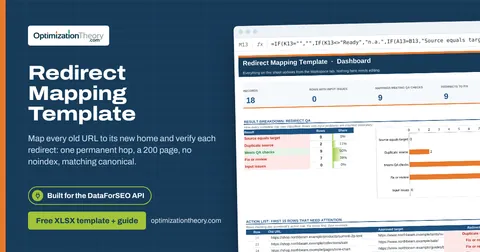
08Redirect Mapping TemplateOn-Page API
Map every old URL to its new home and verify each redirect: one permanent hop, a 200 page, no noindex, matching canonical.
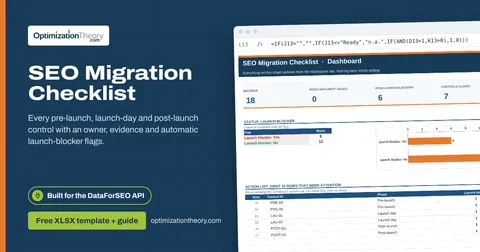
09SEO Migration ChecklistOn-Page API
Every pre-launch, launch-day and post-launch control with an owner, evidence and automatic launch-blocker flags.
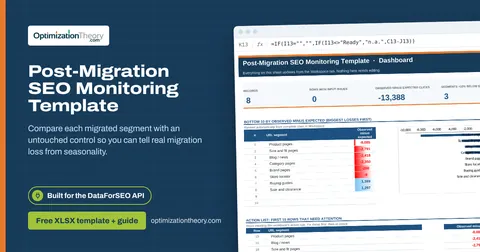
10Post-Migration SEO Monitoring TemplateLabs: Ranked Keywords
Compare each migrated segment with an untouched control so you can tell real migration loss from seasonality.
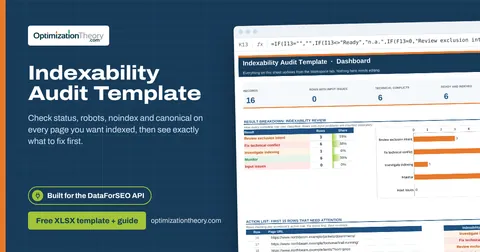
11Indexability Audit TemplateOn-Page API
Check status, robots, noindex and canonical on every page you want indexed, then see exactly what to fix first.
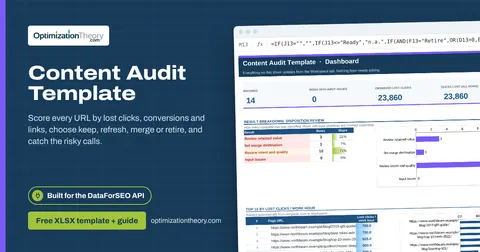
20Content Audit TemplateOn-Page API
Score every URL by lost clicks, conversions and links, choose keep, refresh, merge or retire, and catch the risky calls.
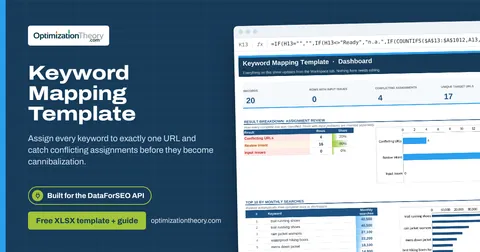
02Keyword Mapping TemplateLabs: Ranked Keywords
Assign every keyword to exactly one URL and catch conflicting assignments before they become cannibalization.
Part of the SEO Migration Toolkit
Get all 6 SEO Migration templates in one ZIP, or the complete set of 40 SEO and GEO templates with the 401-page field handbook.
Further reading on Optimization Theory

Built by Jourdan Rombough, technical SEO and GEO consultant with 15+ years in search. About Jourdan or get an SEO plan.
More on digital marketing in our blog
See all posts