Title Tag CTR Test Calculator
Title Tag CTR Test Calculator
Compare two CTRs with a 95% interval and plain-English verdicts, so you don't ship a title change that was just noise.
Whether a title or snippet change produced a CTR difference that's distinguishable from noise, with honest labels for small samples and non-randomized comparisons.
- Excel workbook (.xlsx), opens in Google Sheets
- PDF field guide, 9 to 11 pages
- Blank and worked CSV templates
- DataForSEO import script
Free, no email required. Version 3.0, updated November 2026.
=IF(H13="","",IF(H13<>"Ready","n.a.",IF(F13=0,"Descriptive comparison",IF(OR(C13<10,B13-C13<10,E13<10,D13-E13<10),"Small sample: review",IF(AND(M13>0,N13>0),"Positive interval",IF(AND(M13<0,N13<0),"Negative interval","Interval includes zero"))))))The formula above is the real one from cell O13. Scroll it sideways to read the whole rule.
Connected to the DataForSEO API
This template is designed around one DataForSEO endpoint. Pull the data, convert it with one command, and the workbook does the rest.
DataForSEO On-Page APIA crawl of your site: URLs, status codes, canonicals, inlinks and sitemap membershipon_page/task_post
Save the JSON responseThe full API response, kept as your source of truth.response.json
Run the import scriptOffline. No API calls, no credentials.dataforseo_import.py import --template 24
Paste at A13Dashboard, checks and action list update instantly.Title Tag CTR Test Calculator.xlsx
Column map for this template:Filled by the APIAudit trail (automatic)You add
What the title tag CTR test calculator decides
Title tag tests are one of the few SEO experiments small teams can run, and one of the easiest to misread. A CTR going from 3.1% to 3.4% looks like a win until you realize the interval around that difference includes zero.
This SEO title tag testing calculator compares CTR for version A and version B, calculates the difference in percentage points, an unpooled standard error and an approximate 95% confidence interval, then labels each test: Positive interval, Negative interval, Interval includes zero, Small sample: review, or Descriptive comparison when the test wasn't randomized.
Who it's for
- SEOs testing titles and meta descriptions
- Ecommerce teams testing product title formats at scale
- Analysts who need to report test results honestly
- Teams with SEO split-testing setups
Where it fits in your workflow
The title tag CTR test calculator answers one question. These three templates answer the questions around it:
- SEO Split Test Calculator: whether an SEO change moved traffic on treated pages relative to matched control pages, and whether the evidence supports reading the estimate.
- Content Decay Analysis Template: whether a page lost clicks because it lost rankings, lost CTR or the market lost interest, and how big the demand-adjusted gap is.
- SEO Content Brief Template: which sections of a page are ready to publish, and what each unfinished section needs next: writing, fact-checking or editor approval.
What's inside the download
One ZIP with the workbook, a 7-column input template (blank and filled), the PDF field guide and an offline script that converts saved DataForSEO responses into the input CSV. The workbook has five tabs.
How the title tag test calculation works
CTR = clicks ÷ impressions for each version. Difference = CTR B − CTR A. Standard error = √(pA(1−pA)/nA + pB(1−pB)/nB). The approximate 95% interval is difference ± 1.96 × SE. Fewer than 10 clicks or non-clicks in either group is flagged as a small sample.
The key formula, exactly as it appears in the workbook
=IF(H13="","",IF(H13<>"Ready","n.a.",IF(F13=0,"Descriptive comparison",IF(OR(C13<10,B13-C13<10,E13<10,D13-E13<10),"Small sample: review",IF(AND(M13>0,N13>0),"Positive interval",IF(AND(M13<0,N13<0),"Negative interval","Interval includes zero"))))))
| Result column | Plain-English formula | What it tells you |
|---|---|---|
| CTR A | Version A clicks ÷ Version A impressions | Version A clicks / impressions. |
| CTR B | Version B clicks ÷ Version B impressions | Version B clicks / impressions. |
| CTR difference (pp) | CTR B-CTR A | Percentage-point difference displayed as a percentage. |
| Unpooled standard error | SQRT(CTR A × (1-CTR A) ÷ Version A impressions+CTR B × (1-CTR B) ÷ Version B impressions) | Normal-approximation standard error of the difference. |
| Approx. 95% lower | CTR difference (pp)-1.96 × Unpooled standard error | Unpooled Wald interval lower bound. |
| Approx. 95% upper | CTR difference (pp)+1.96 × Unpooled standard error | Unpooled Wald interval upper bound. |
| Interpretation | IF(Random allocation verified=0,"Descriptive comparison",IF(OR(Version A clicks<10,Version A impressions-Version A clicks<10,Version B clicks<10,Version B impressions-Version B clicks<10),"Small sample: review",IF(AND(Approx. 95% lower>0,Approx. 95% upper>0),"Positive interval",IF(AND(Approx. 95% lower<0,Approx. 95% upper<0),"Negative interval","Interval includes zero")))) | Checks allocation and small expected-count concerns before labeling the interval. |
The results you will see
Descriptive comparisonSmall sample: reviewPositive intervalNegative intervalInterval includes zero
Green meets the checks, red needs fixing first, amber needs a human decision and blue marks an opportunity. Rows with missing or out-of-range inputs are held back in the Input check column until they're fixed, so a half-filled row never sneaks into a total.
How to use the title tag CTR test calculator
- Define A and BSplit comparable pages into two groups, or compare time periods for one page if you can't split.
- Collect impressions and clicksFrom Search Console, for the same date range and filters for each version.
- Mark randomizationMark 1 only if pages were randomly assigned to A and B. Before/after on one page is 0.
- Read the interval, not the pointShip only Positive interval results. Keep testing when the interval includes zero.
The worked example in the Workspace tab. Clear the lime input cells, paste your CSV at A13 (values only) and every result recalculates.
Fill the title tag CTR test calculator with DataForSEO
Every template in this library is built to run on DataForSEO data. This one uses DataForSEO On-Page API: a crawl of your site: URLs, status codes, canonicals, inlinks and sitemap membership.
Most of the data columns fill automatically. Add the business inputs listed below, then paste.
- Request the dataSend this request with your DataForSEO API login (HTTP Basic auth).
POST https://api.dataforseo.com/v3/on_page/task_post [ { "target": "yourdomain.com", "max_crawl_pages": 1000 } ]
Post the crawl task, wait for it to finish, then request on_page/pages with {"id": "<task id>", "limit": 1000} and save that response.
- Save the full JSON responseSave the complete response, not just the task ID, next to the template folder.
- Convert it with the included scriptIt runs offline, makes no API calls and never sees your credentials.
python3 Automation/dataforseo_import.py import --template 24 --input response.json --output my-inputs.csv
- Add what the API can't knowVersion A impressions, Version A clicks, Version B impressions, Version B clicks, Random allocation verified
- Paste at A13Clear the demo rows, paste the CSV values at Workspace cell A13 and the dashboard updates.
| Fills automatically from DataForSEO | You add |
|---|---|
| Page URL | Version A impressions, Version A clicks, Version B impressions, Version B clicks, Random allocation verified |
Source reference fills automatically with the task ID, endpoint, location, language, device and snapshot time, so every row is traceable. Before a big pull, estimate the cost with the DataForSEO pricing calculator. The same steps, plus an example request file, are in the download's Automation folder.
Worked example: Northbeam Outdoor
Every template ships filled with data from Northbeam Outdoor, a fictional outdoor-gear retailer that appears across all 40 workbooks, so you can see what useful output looks like before you add your own. This workbook has 8 example rows.
Three example tests show a clearly positive interval. The tent category test went slightly negative but includes zero, and the sale page test wasn't randomized, so it's descriptive only.
Top 10 by CTR difference (pp)
| # | Page URL | CTR difference (pp) |
|---|---|---|
| 1 | https://www.northbeam.example/sale/ | 1.09% |
| 2 | https://www.northbeam.example/hiking-boots/waterproof/ | 0.91% |
| 3 | https://www.northbeam.example/water/filters/ | 0.72% |
| 4 | https://www.northbeam.example/guides/choose-sleeping-bag/ | 0.70% |
| 5 | https://www.northbeam.example/packs/hydration/ | 0.61% |
Input fields
Keep the columns in this order when you prepare a CSV. A missing observation stays blank; use 0 only for a measured zero or a verified No. Fields marked DataForSEO can be filled automatically by the included script.
| CSV field | Column | Meaning and rule | Source |
|---|---|---|---|
| url | Page URL | Exact absolute URL. Keep case and query parameters unless a documented normalization rule applies. | DataForSEO: url |
| impressions_a | Version A impressions | Eligible observations for version A under a documented allocation. | Your records |
| clicks_a | Version A clicks | Clicks among version A impressions. | Your records |
| impressions_b | Version B impressions | Eligible observations for version B. | Your records |
| clicks_b | Version B clicks | Clicks among version B impressions. | Your records |
| randomized | Random allocation verified | 1 only if allocation supports the independent randomized-comparison assumptions. 1 = Yes, 0 = No. | Your records |
| source_ref | Source reference | Task ID, export filename and observation scope. Retain the untouched source response separately. Optional. | DataForSEO: source_ref |
Reading the result honestly
Ordinary before-after GSC windows are descriptive. The randomized flag must not be used to upgrade observational data.
Limits. Normal approximation can fail for small counts. Repeated peeking, correlated impressions and multiple tests need a different analysis.
Title tag test mistakes to avoid
Tips from practice
- Use the SEO split test calculator for traffic-level tests with control groups.
- Test patterns across many pages rather than one page at a time.
- Save the winning pattern in your content brief template for future pages.
Frequently asked questions
How do I A/B test title tags for SEO?
Change titles on a randomly selected group of similar pages, keep a control group unchanged, and compare CTR over the same period with a confidence interval.
How long should an SEO title test run?
Until each group has enough impressions and clicks to produce a tight interval, typically several weeks for most sites.
Why isn't a higher CTR always a win?
Because random variation produces differences too. The confidence interval shows whether the difference is likely real.
Can I test one page before and after?
Yes, but it's a descriptive comparison, not a controlled test. The template labels it that way.
Use it with these templates
Each template answers one decision. These are the ones that feed into, or follow from, the title tag CTR test calculator.
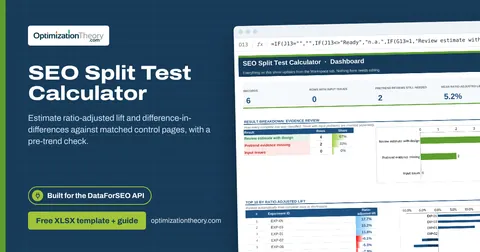
33SEO Split Test CalculatorLabs: Ranked Keywords
Estimate ratio-adjusted lift and difference-in-differences against matched control pages, with a pre-trend check.
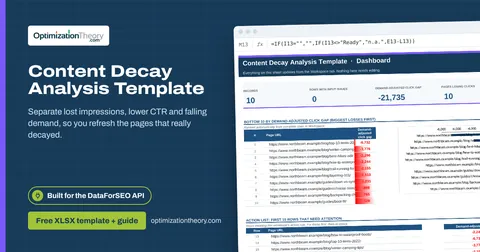
21Content Decay Analysis TemplateLabs: Ranked Keywords
Separate lost impressions, lower CTR and falling demand, so you refresh the pages that really decayed.
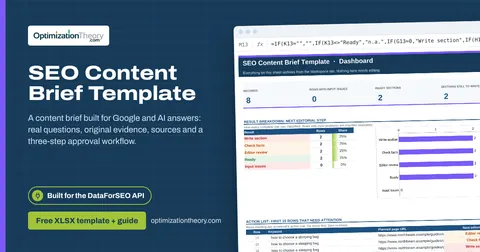
19SEO Content Brief TemplateLabs: Keyword Overview
A content brief built for Google and AI answers: real questions, original evidence, sources and a three-step approval workflow.
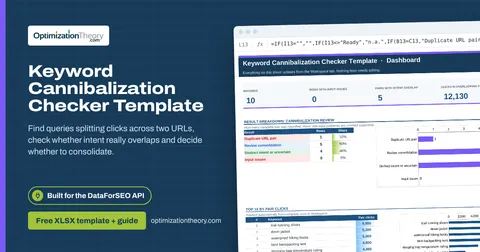
22Keyword Cannibalization Checker TemplateLabs: Ranked Keywords
Find queries splitting clicks across two URLs, check whether intent really overlaps and decide whether to consolidate.
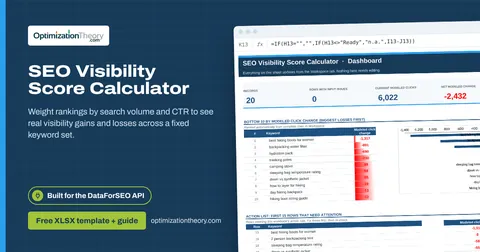
06SEO Visibility Score CalculatorLabs: Ranked Keywords
Weight rankings by search volume and CTR to see real visibility gains and losses across a fixed keyword set.
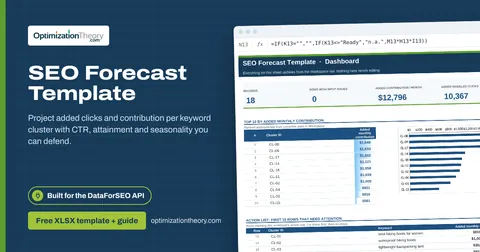
31SEO Forecast TemplateLabs: Keyword Overview
Project added clicks and contribution per keyword cluster with CTR, attainment and seasonality you can defend.
Part of the Content SEO Toolkit
Get all 6 Content SEO templates in one ZIP, or the complete set of 40 SEO and GEO templates with the 401-page field handbook.
Further reading on Optimization Theory

Built by Jourdan Rombough, technical SEO and GEO consultant with 15+ years in search. About Jourdan or get an SEO plan.
More on digital marketing in our blog
See all posts