

The visual guide, explained
The most useful Google Search tips give you control over the question you are asking. Quotation marks keep a phrase together. Search operators remove an unwanted meaning or focus on a particular website. Google Lens starts with a picture. Advanced search filters help you choose a date, language, or kind of result.
The next step is knowing which method fits the task. Finding a product manual calls for a different search from checking an image, comparing flights, or following a research paper. This guide expands the infographic into 72 practical Google Search tricks, commands, tools, and research techniques, with queries you can adapt and explanations of how to interpret the results.
For a quick start
"urban heat island"Find precise wording.jaguar -carRemove an unwanted meaning.mars site:nasa.govSearch a specific website.climate report filetype:pdfFind a document.Choose the sections that match your next task. The numbered tips follow the infographic, so you can move between the visual reference and the more detailed examples below. Tap any query chip to copy it.
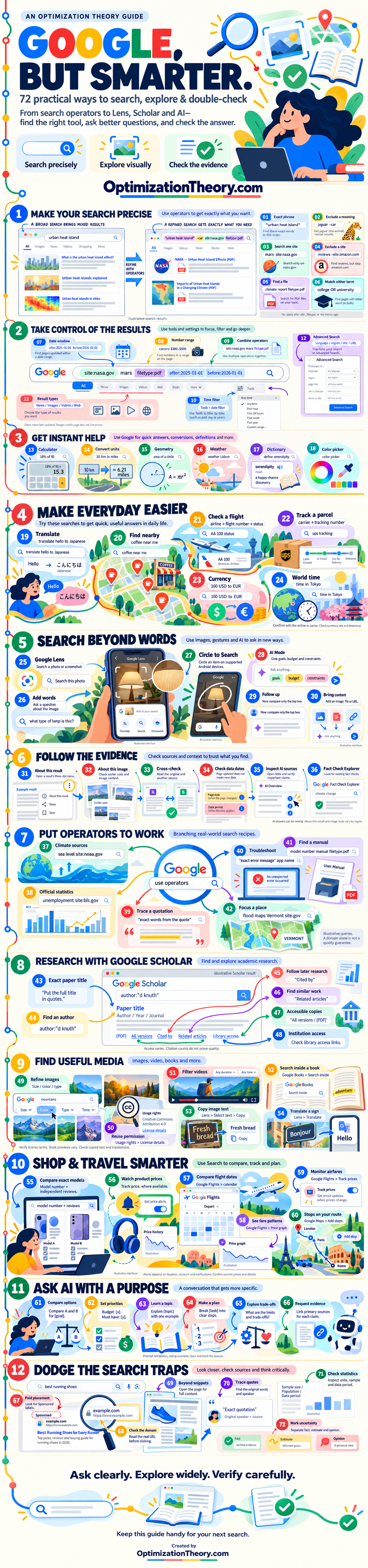
Open the infographic at full size to inspect the examples. Its interfaces and charts are illustrative. The Google usage milestones in the footer were reported in June 2026; they are not October measurements.
Google Search Operators: Exact Matches, Exclusions, and Site Search
A useful search begins with the thing you want to find. Add an operator when the results reveal a specific problem: the wrong meaning, an unwanted retailer, or pages from everywhere except the organization you need. Start with one restriction, read a few results, and adjust. Stacking several commands immediately can hide a useful page before you understand which restriction caused the problem.
01Search an exact phrase with quotation marks
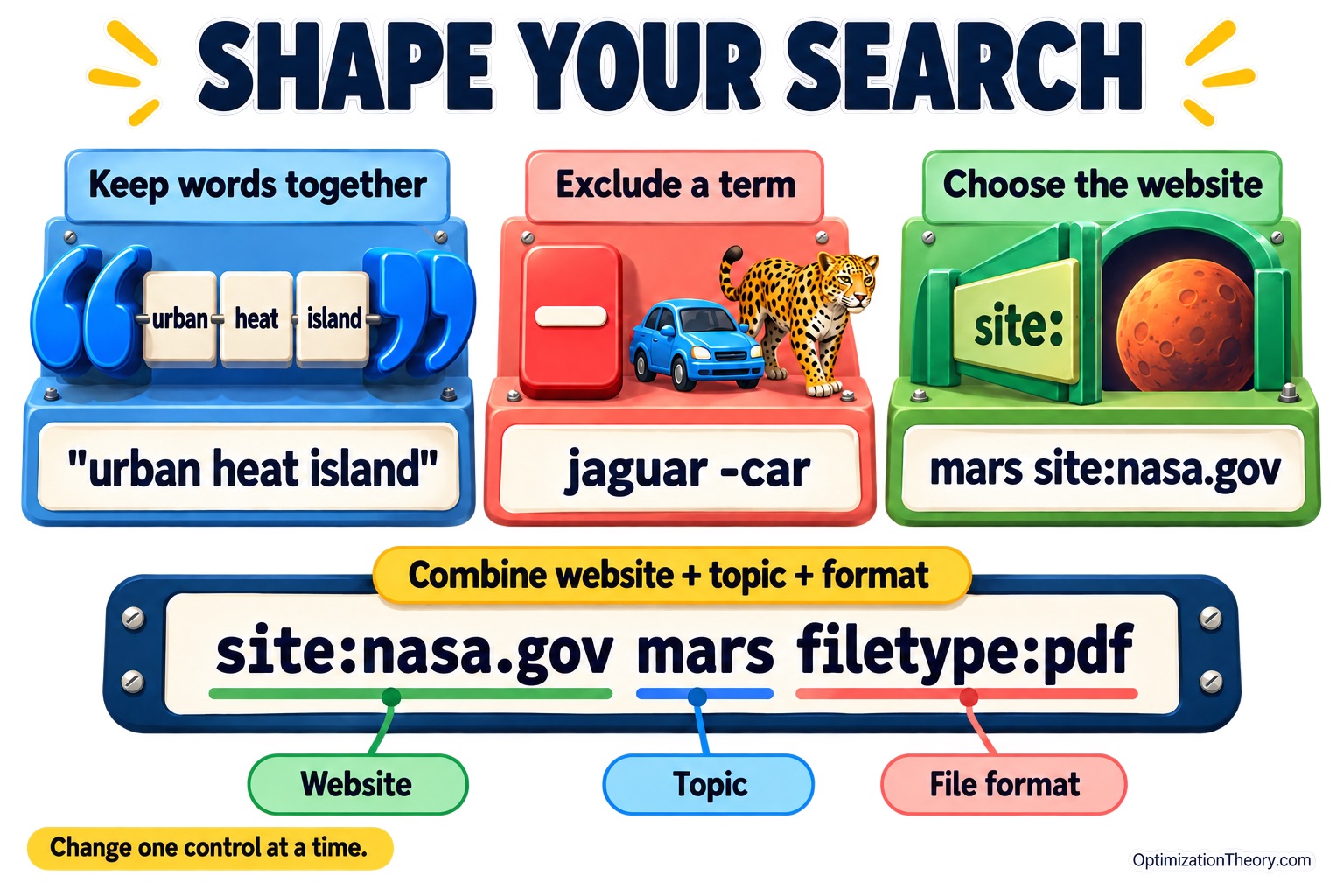
Try "urban heat island" when those words need to stay together. Quotation marks help with named concepts, distinctive sentences, and titles you remember accurately. Google documents exact-phrase searching, while noting that matches can come from less visible page content. If the phrase produces little, remove the quotes or shorten it. A useful explanation may use different wording from yours.
02How to exclude words from Google Search
Use jaguar -car when a word has an unwanted meaning. Put the minus sign directly against the term you want to exclude; Google’s search form shows this syntax. Read the remaining results to see whether your intended topic is clearer. Be selective: an article about jaguars could mention a car in passing. Removing a word can also remove a page you would have liked.
03Search a website with the site: operator
Enter mars site:nasa.gov to search a website through Google. This is useful when you know the publisher but its navigation is unfamiliar. Google supports restrictions to a domain, URL, or URL prefix. Keep site:nasa.gov together. If the desired page does not appear, try the organization’s own search: a site query is not a complete inventory of everything published there.
04Exclude a website from search results
Try reviews -site:amazon.com when you want to explore results beyond one prominent retailer. Google documents the minus-plus-site combination. Read who produced each remaining review and whether the reviewer tested the product you mean. Excluding a retailer changes the pool of results; it does not establish that the remaining writers are independent, experienced, or discussing the same model.
05Find a PDF with the filetype: command
Use climate report filetype:pdf when you need a report, presentation, or document you can save. The filetype operator restricts results by format. Once you open a PDF, inspect its cover, publisher, version, and reporting period. A polished document can still contain old figures. If nothing useful appears, remove the file restriction; some organizations publish their best material as ordinary webpages.
06Match either term with uppercase OR
Search college OR university to allow either alternative. Google’s Advanced Search form documents uppercase OR. This helps when different organizations use different names for similar things. Scan the results for the terminology your intended source actually uses, then refine the query. If your alternatives represent substantially different questions, run separate searches so each result set is easier to evaluate.
Google Advanced Search: Date Ranges, Filters, and Search Commands
The next step is choosing which kind of material would answer your question. A recent announcement, an older research report, a tutorial video, and a downloadable map require different searches. Filters let you change the view without memorizing every command. Treat them as adjustable controls: a narrower result set is useful only if it still contains the evidence you need.
07Set a Google Search date range
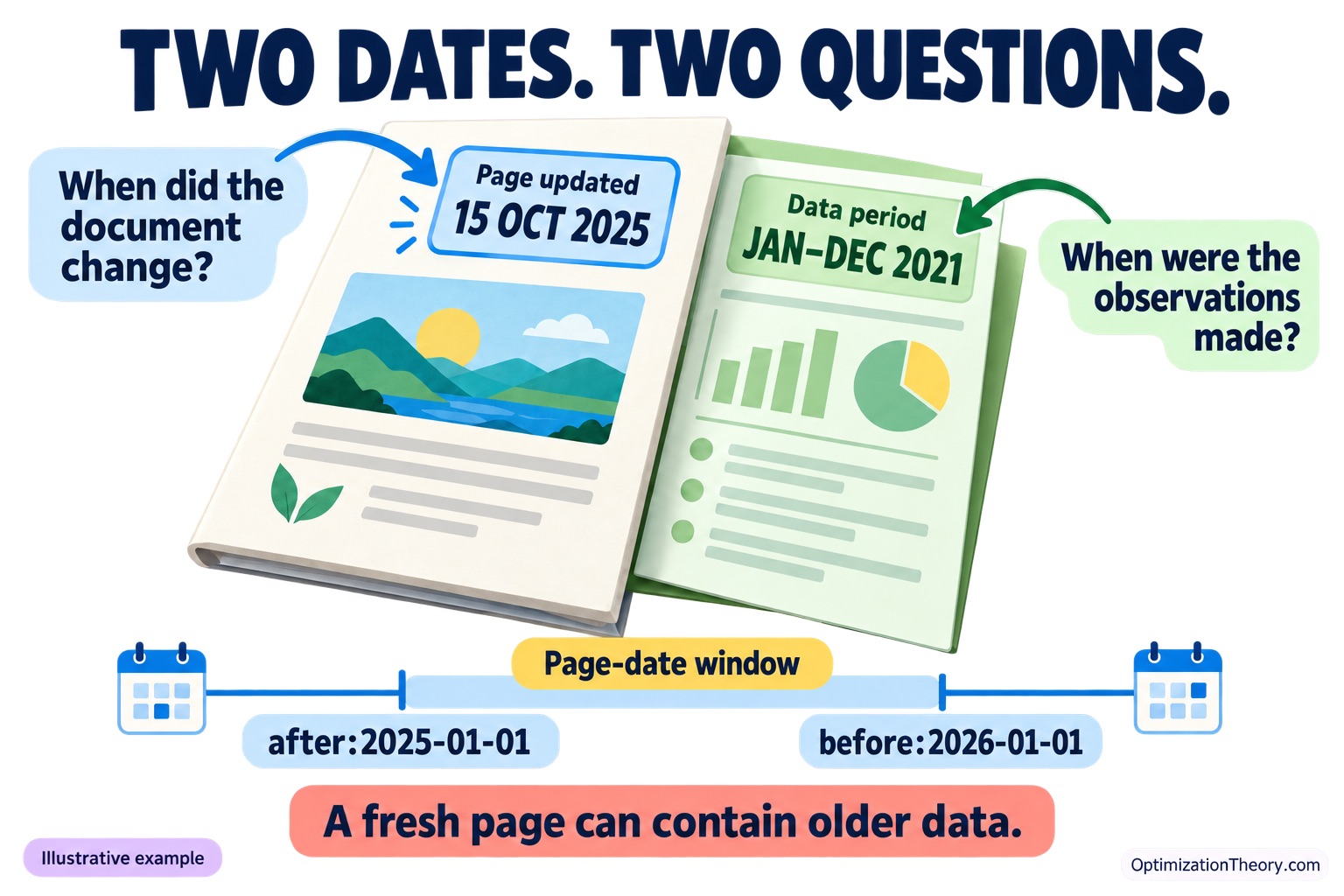
Add after:2025-01-01 before:2026-01-01 to your topic to specify a date window. Google describes these operators as finding documents last updated before or after a date. Keep the date attached to its operator. Then open the result and check the period covered by its figures. A recently updated page might still summarize an older survey or historical event.
08Search a number range without assuming live prices
Try camera $300..$500 to look for pages containing numbers within a range. Use two periods, as shown in Google Advanced Search. Consider this a discovery query, then check the actual product page. The number could describe an old price, a used item, an accessory, or a comparison. It is not confirmation that the camera is available within your budget today.
09Combine search operators one restriction at a time
Enter site:nasa.gov mars filetype:pdf when you want NASA-hosted documents about Mars. The site restriction chooses the host; the file restriction chooses the format. Google documents both operators. If the results miss your goal, remove filetype:pdf first, then reconsider the site restriction. Changing one element at a time makes it easier to see which part of your query is too demanding.
10Use search filters to narrow by time
Search urban tree cover, then look under Tools → date filter, where available. A recent window can help you explore current discussion without rewriting the query. Google notes that available tools vary with the search, result type, and browser. Read the date on the actual page, too. Google’s date explanation describes how it estimates when material was published or significantly updated.
11Choose News, Images, Videos, or Web results
Search Mars mission, then choose the format that fits your task: News for reporting, Images for pictures, or Videos for footage and demonstrations. The Web filter displays text-based links without features such as AI Overviews. Compare views when the first screen feels unhelpful. A video thumbnail or image preview is an invitation to inspect the source, not enough evidence to quote on its own.
12Use Advanced Search filters for language, title, and URL
Open Google Advanced Search when a form is easier than remembering syntax. It offers controls for language, region, site, file format, and where terms appear. For example, place a distinctive report name in the exact-phrase field and select a preferred language. If the results are sparse, relax one field. A region filter concerns where pages are published; it does not automatically make their contents relevant to your location.
Google Calculator, Unit Converter, and Other Quick Search Tools
A short query can settle a calculation or identify a word while you stay focused on a larger task. Use these tools for quick checks, then carry the answer back to your recipe, project, or planning notes. Instant-answer features and their presentation can vary by region and browser.
13Calculate directly in Google Search
Enter an arithmetic expression to use Google’s calculator. For example, 18% of 85 equals 15.3. If you are dividing a group dinner bill, calculate the tip first, add it to the bill, and divide the total by the number of diners. Write the whole calculation down so everyone can check which amount you used.
14Convert units before comparing measurements
Google supports measurement conversions entered in the search box. See supported conversions. Search 10 km in miles to get approximately 6.21 miles. This helps when a race distance uses kilometers and your training log uses miles. For a recipe or product specification, name both units explicitly and keep the original measurement beside your converted figure.
15Find the geometry formula you need
Search area of a circle for Google’s geometry calculator. Google explains the tool here. For a circular tabletop, sketch the measurements before entering them: the radius runs from the center to the edge, while the diameter crosses the whole circle. Keeping those labels visible helps you avoid using the diameter where the formula calls for a radius.
16Check weather for the place you will be
Add a place name to a weather query, such as weather Lisbon. Google’s search guidance documents this pattern. Before packing for a walking tour, check the relevant day, hourly conditions, and location rather than relying on the first temperature you notice. Recheck closer to departure; a saved screenshot describes the forecast when it was saved.
17Look up a word in context
Put define before an unfamiliar word, such as define serendipity. Google documents dictionary searches. Then return to the sentence where you found it. A word in a novel may carry a different sense from the same word in a technical manual. Try writing your own example sentence to check that you understood the meaning the author intended.
18Find a color and record its code
Search color picker to choose or convert a color code; some browsers do not support the tool. Google’s Color Picker guide explains the options. If you are making matching invitations and slides, save the chosen code in your project notes. Test it against the actual background so the text remains easy to read.
Everyday Google Search Tricks: Translate, Maps, Flights, and Tracking
These searches work best when you supply the missing detail: a language, neighborhood, carrier, currency, or city. They are useful starting points for daily decisions. Keep changing information attached to its source and timestamp, especially when a missed update could disrupt your plans.
19Translate a complete thought
Try translate hello to Japanese, or enter the short sentence you actually need. Google supports translation through Search and Google Translate. For a restaurant reservation, translating “We have a reservation under Lee” gives the tool more context than translating “reservation” alone. Read the complete output and check names, dates, and numbers before showing or sending it.
20Add a neighborhood to nearby searches
Google recommends adding a location when you want local results. See its search tips. Start with coffee near me, then try coffee near Union Station if you are planning ahead. Compare the place’s location with your actual route, open its details, and confirm opening hours before making a special trip. A familiar business name can have several branches.
21Find a flight using its identifying details
Search the airline name, flight number, and status together. Use this query to locate the airline’s official flight-status page, then check the travel date, airports, and latest update there. This is especially useful when you are meeting someone: ask for their flight number before leaving home, and revisit the airline’s information before setting off. Search-result layouts can vary.
22Go from a tracking number to the carrier
Search the carrier name with the tracking number, then open the carrier’s official tracking page. Google has documented tracking-number searches, but you should confirm current details with the delivery company. If a seller sent several numbers, match each one to its order before interpreting the result. Read the latest scan and any delivery instructions together.
23Convert currencies with the timestamp in view
Enter a query such as 100 USD to EUR; currencies are among Google’s supported conversions. Use the result as a dated comparison when planning a purchase. Before paying, check the rate and charges offered by your card provider, bank, or seller. Keep the original currency visible so you can compare the final quoted total with your initial estimate.
24Check another city’s time before calling
Try time in Tokyo when you need to understand someone else’s working day. For a future meeting, also put the intended date and both cities into your calendar’s time-zone settings. A current-time lookup helps with a call today; a dated calendar invitation makes the planned meeting explicit. Include the date in your message when the cities may be on different calendar days.
Google Lens, Reverse Image Search, and Google AI Mode
25How to use Google Lens for reverse image search
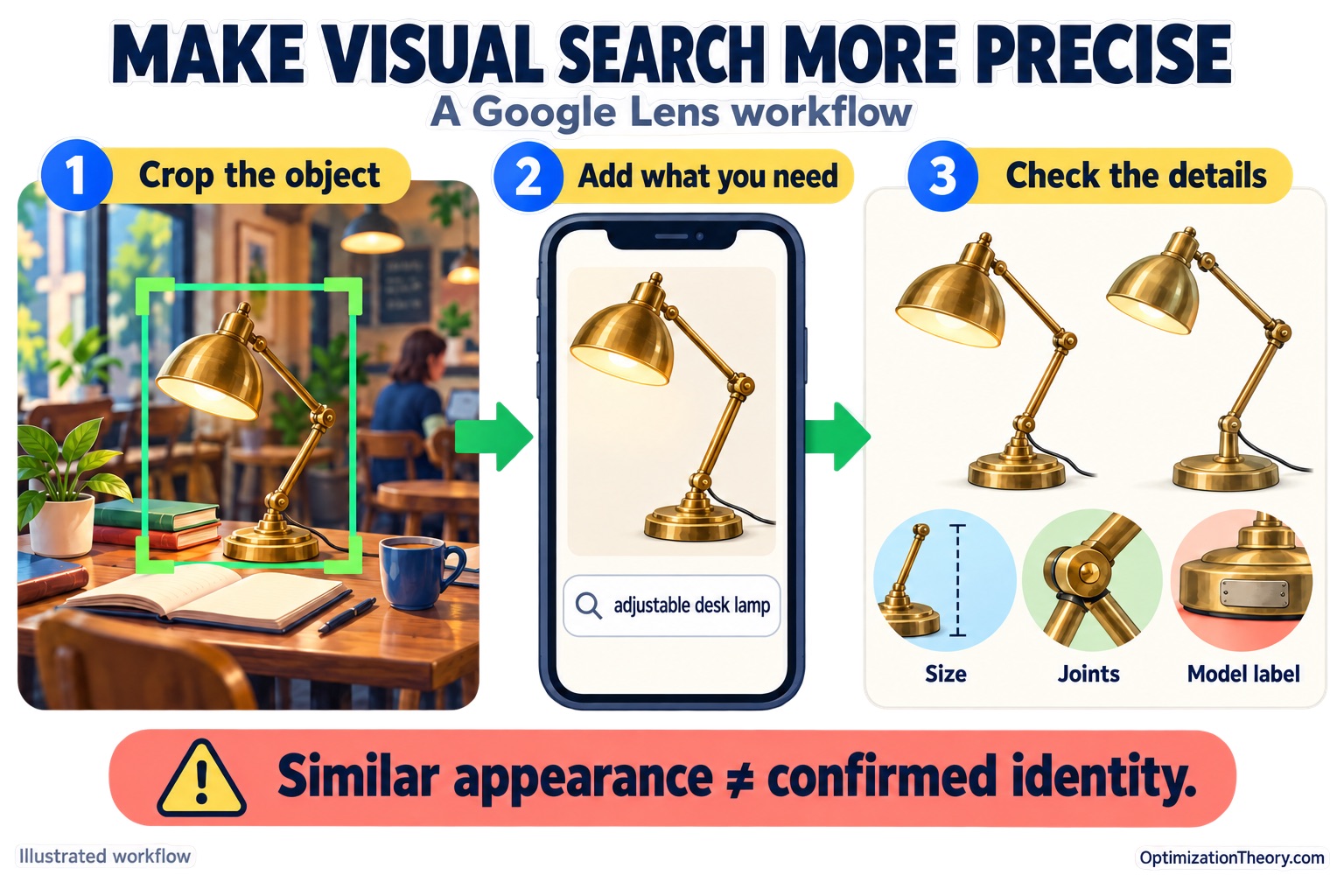
On a computer, go to Google, select the image-search button, and upload or drag in a picture; you can also search from an image address. On Android or iPhone, open the Google app, tap Lens, take or upload a photo, and select the object you want to investigate. Google’s Lens instructions explain the available paths. If a busy picture gives vague results, crop more tightly before adding a question.
Use this when an object is easier to show than describe: a chair, a connector, or an unfamiliar building. Treat similar-looking results as leads, then inspect identifying details before concluding that you have found the exact item.
26Add words to an image search
In mobile Lens, crop around the relevant object, then use Ask about this image to add keywords. Google documents this refinement.
The picture establishes the visual starting point; your words explain the task. Try “this style in green” for a chair or “replacement part name” for a connector. If the results wander, tighten the selection and change one detail at a time.
Worked example
Suppose you photographed a brass-colored lamp in a café and want something similar for your desk. First crop out the table and surrounding furniture. Search the lamp, then add “adjustable desk lamp.” If the results favor oversized floor lamps, try “small desk lamp with angled shade.” Open promising results and compare dimensions, joints, shade shape, and finish. A close visual match might still have a different manufacturer or size. If identifying the original matters, photograph a maker’s mark or model label and search that separately; visual similarity alone will not settle the question.
27Use Circle to Search on a supported Android phone
On supported Android devices, hold the Home button or navigation handle, then circle or tap the content you want to search. Google’s device guidance notes that some apps restrict this feature.
It is useful when a video or article contains something you cannot name. Select only the object that interests you. For a bag in a crowded outfit photo, focus on the bag rather than the person’s entire appearance.
28Give Google AI Mode a specific goal
Open AI Mode through Google Search, the Google app, or google.com/ai. Availability varies by location, language, and feature. Google explains the access options.
Before asking, decide what would make the answer useful. For a commuting-bike comparison, specify your route length, storage space, and budget. These details help frame the comparison. Check the response against those requirements before trusting the recommendation.
29Ask follow-up questions that narrow the decision
AI Mode supports follow-up questions within a conversation. See Google’s instructions.
After a broad comparison, ask, “Now compare only the two lightest options,” or “Which conclusion changes if I cannot charge at work?” Then check whether the revised answer still uses your original requirements. A fluent response can overlook a constraint, so correct the omission directly rather than assuming that every earlier detail carried through accurately.
30Add an image, PDF, file, or page URL to AI Mode
Use AI Mode’s attachment menu for images or files, or paste a page URL with your question. Supported inputs include PDFs and other files.
For example, compare two appliance specification sheets and ask which fits a particular cabinet opening. Open the documents afterward and locate the relevant measurements yourself. Supplying a source gives the conversation context; it does not guarantee that every table, qualification, or footnote will be interpreted correctly.
How to Find Credible Sources and Fact-Check Google Results
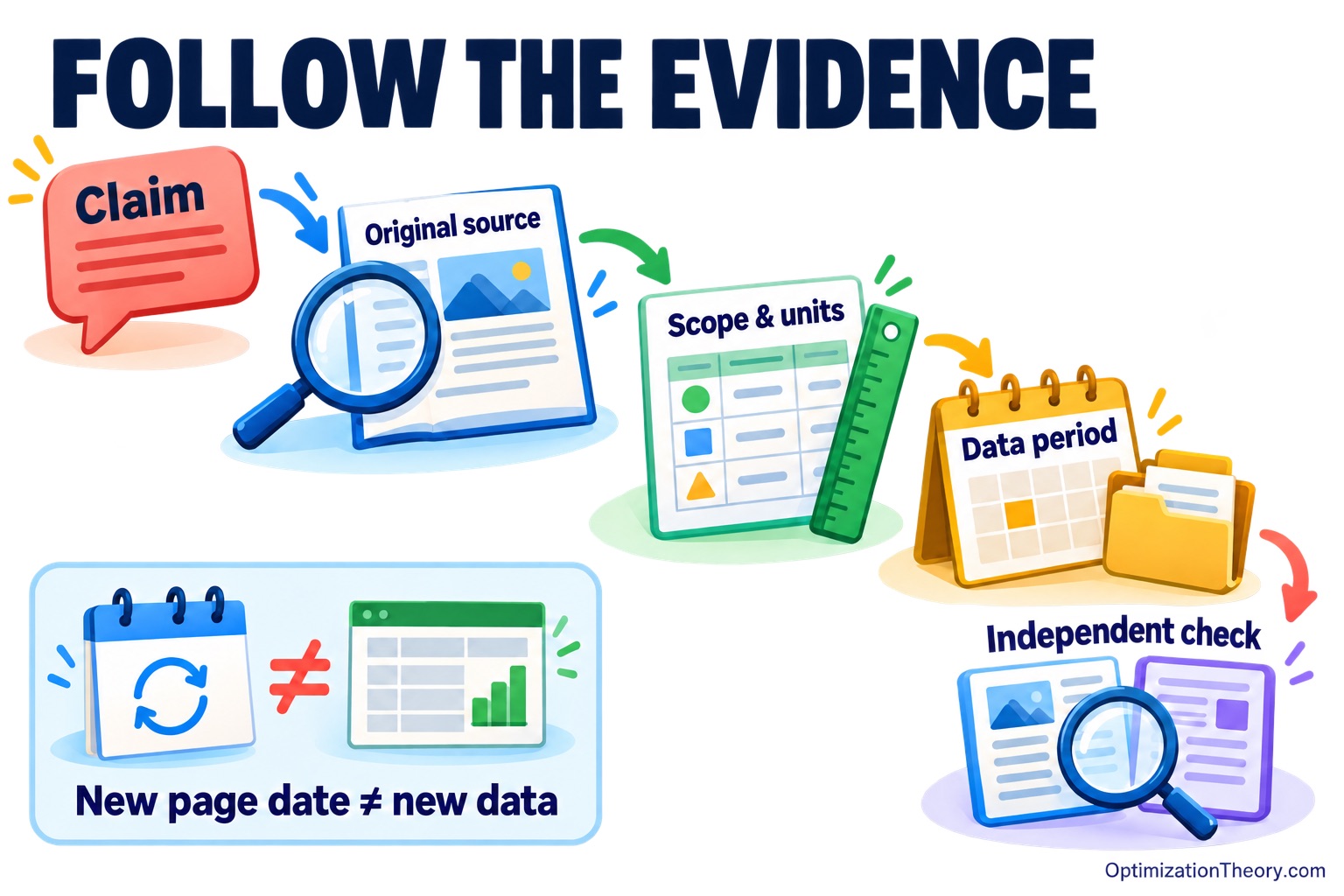
Build a habit of following a claim back to the material that supports it. A useful check answers three questions: who is responsible, what evidence is available, and when that evidence applies. Google’s source and image-context tools are available only in some regions.
31Investigate an unfamiliar publisher
Open the result’s three-dot menu to find source information in About this result, where available. Google’s help page describes the information it may show. For an unfamiliar product-testing site, also open its About page and look for named authors, testing methods, and disclosures. Use those details to decide how much weight its recommendation deserves alongside other evidence.
32Check an image’s earlier context
Open Google’s Image Viewer, then choose About → Learn more about an image, where available. See Google’s guide. An approximate first-seen date can expose an old storm photo circulating as today’s news; it does not establish when the photo was captured. Check earlier uses and the publisher’s explanation. Image metadata can be modified, so corroborate it.
33Follow a claim to its original evidence
When several articles repeat the same claim, look for the underlying report, dataset, recording, or announcement. Then find independent reporting that examines it. For example, if a headline describes a change in commuting, read the original survey’s question and population before using the conclusion. Several sites copying one release still give you a single underlying source to evaluate.
34Separate the page date from the data period
Google’s displayed date estimates when a page was published or significantly updated. Its date guidance explains that distinction. A recently updated city profile may still contain an older census table. Find the table’s reference period and release notes, then record those alongside the figure. Use that period when describing the statistic to another person.
35Open the sources behind an AI answer
Google advises checking important AI Overview information through supporting links and other results. Read its verification guidance. Pick the specific claim you intend to use, open the cited page, and locate the supporting passage. Check whether it covers the same population, product, or situation. A relevant-looking link still needs to support the actual statement beside it.
36Search for an existing fact check
Use Fact Check Explorer to search a topic, or look for previous checks involving an image. Google describes both search options. Before sharing a viral post, compare its precise claim with the claim examined in the fact check. Read the explanation and evidence, including any dates. An unsuccessful search leaves the claim unresolved.
Advanced Google Search Recipes for Quotes, PDFs, and Official Sources
Operators become more useful when you connect them to a real task. These recipes are starting points you can adapt, with no promise about which page will rank first. Replace placeholder wording such as model number with your actual details. A narrow domain can help identify the publisher, but you still need to judge whether a particular page answers your question.
Worked example
Build a source trail for a coastal presentation
Suppose you need to explain sea-level change near a particular U.S. town. You want a clear introduction, local measurements, and a figure whose meaning you can explain.
sea level site:noaa.gov. Open a background explanation and identify the distinction between global averages and local conditions. NOAA explains why local and global sea-level measurements differ. Write down which type your presentation needs before searching for a number.sea level report filetype:pdf site:noaa.gov if you need a downloadable report. Open it and check the edition and figure caption. Compare its reporting period with the webpage you already read. A PDF’s upload or update date does not tell you the age of every chart inside it.37Find climate sources on an official website
Begin with sea level site:noaa.gov, then add the place, measurement, or question you need. For example, local planning requires more geographic detail than a general school explanation. NOAA’s sea-level overview distinguishes global and local measurements. Read the source’s units and coverage before borrowing a figure. The agency name helps you locate material, while the specific page determines whether that material fits your purpose.
38Find official statistics and check their definitions
Use unemployment site:bls.gov to begin with the U.S. Bureau of Labor Statistics. Its Current Population Survey covers unemployment and other labor-force measures. When you open a release or table, check the month, population, geography, and whether the series is seasonally adjusted. Copy those details with the number. A national monthly rate and a local annual average cannot answer exactly the same question.
39Trace a quotation with an exact-phrase search
Replace "exact words from the quote" with a distinctive passage from the quotation you want to check. Look for a speech transcript, original interview, book, or other identifiable source. Read the surrounding passage and confirm the speaker. Quoted searches help locate matching wording; they do not authenticate an attribution. If there are no useful matches, shorten the passage and investigate whether the circulated version was paraphrased.
40Troubleshoot an error using its exact message
Start with "exact error message" app name, replacing both placeholders with what you see. Add the application version or operating system if needed. Favor guidance that describes your situation and explains what a suggested fix changes. An exact match can surface an unrelated product with the same message. If nothing fits, remove a changing detail such as a username or file path and try the remaining wording.
41Find a product manual by model number and PDF filetype
Replace the placeholders in model number manual filetype:pdf with the model printed on your device. Check the manufacturer’s result, then compare the manual’s model list with that label. Similar product names can hide different controls or specifications. Google’s filetype guidance explains the format restriction; it does not verify the document’s suitability. If the manual is published in HTML, remove filetype:pdf and search again.
42Focus an official-source search on a place
Try flood maps Vermont site:gov, then add a town, county, or agency when you know it. The place name makes your intended geography explicit. Read the map’s publisher, coverage, legend, and revision information before relying on it. This query is an illustrative discovery recipe: a government-domain result may cover a different jurisdiction or an outdated map. For decisions about a specific property, follow the responsible agency’s current instructions.
How to Use Google Scholar: Advanced Search and Research Tips
43Find an exact paper title in Google Scholar
Put the paper’s full title inside quotation marks in Scholar. Google recommends title searching this way.
This is a useful starting point when a bibliography gives you a promising reference but no working link. Match the authors and publication year before saving it. If nothing appears, check the transcription for a missing word or subtitle.
44Use Google Scholar advanced search to find an author
Try author:"d knuth", or use Scholar’s advanced-search fields for the author, title, and publication. Scholar’s help explains both methods.
Add a subject term when a name is common. If you want a researcher’s work on urban heat, combine the name with that topic rather than assuming every result belongs to the same person. Compare affiliations, coauthors, and research areas before adding a paper to your reading list.
45Follow newer research through Cited by
Choose Cited by beneath a paper to find work referencing it. Google describes this as a route to later research.
Use an important older paper as a starting point, then examine how subsequent authors used its findings. Did they extend the method, challenge the conclusion, or mention it only briefly? Read the relevant passage before treating a citation as agreement.
46Explore Related articles without repeating the same query
Scholar’s Related articles link finds documents similar to a result. It remains a supported Scholar feature.
Try it when you have found one relevant paper but your own search terms keep producing a narrow set of results. Read neighboring abstracts and collect unfamiliar terminology for another search. Check that each paper addresses your actual question, though; a shared subject or method does not make two studies interchangeable evidence.
47Check All versions and PDF links for an accessible copy
Look for [PDF], [HTML], or All versions when the main result leads to a subscription page. Scholar documents these access routes.
Before citing an alternative copy, identify what you opened. Compare its title, authors, date, and version information with the reference you need. If you take notes from one version and later switch to another, confirm that the passage and page number still match.
48Use institutional library links
Scholar can display library subscription links; access may require your institution’s network or proxy. Ask your library about the appropriate setup.
If you belong to a university or participating organization, try this route before buying an individual article. Once you obtain the paper, separate access from evaluation: being able to read it does not establish that its methods answer your question. Record the sample, setting, and main limitation alongside the finding, so those details survive when you turn reading notes into a summary.

Google Advanced Image Search, Video Filters, and Google Books
49Use Google advanced image search filters
After choosing Images, look for size, color, and image-type filters. For a form with additional controls, open Google Advanced Image Search and specify details such as aspect ratio, region, site, or file type. Available controls depend on the query and interface. Google also documents the results-page filters.
For a presentation, you might start with a topic, choose larger images, then narrow to line drawings. Open the source page before downloading. Judge the actual image at the size you plan to use; a search thumbnail can hide poor detail, awkward cropping, or text that becomes unreadable when enlarged.
50Verify image licenses before reuse
Use Usage rights, open an image, and follow License details. Google advises checking the license with the image provider and host site. Read its reuse guidance.
For a business presentation or public article, confirm that your intended use and any edits are permitted. Keep the creator’s name, source link, and required attribution with the downloaded file.
Image-rights decision path
51Filter videos by duration and publication date
Choose video results, then check the available duration and time filters. Google documents these video controls.
Use a shorter duration for a quick demonstration, or search for a longer explanation when you need the reasoning behind a process. For software tutorials, compare the application version shown with the version you use. A recently uploaded video can still demonstrate an older interface.
52Search inside a book with Google Books
Find a title in Google Books, open it, and choose Search inside. Preview access and mobile features vary. Google explains in-book searching.
Try a distinctive phrase or a subject term when you remember an idea but not its location. Once you find the passage, check the edition and surrounding discussion before quoting it. Keep the page reference with your notes. If the preview leaves out the context you need, use the result as a lead for obtaining the book.
53Use Google Lens to copy text from an image
In mobile Lens, select the text and choose Copy. Google documents the text-selection workflow.
This is handy for a printed model number, an event notice, or a paragraph you want to search. Compare the copied text with the original before using it. Pay particular attention to similar characters such as 0 and O, punctuation, and line breaks. A single incorrect character in a product code can send an otherwise precise search toward an entirely different item.
54Use Google Lens Translate for signs and menus
Open Lens, choose Translate, and set the output language. You can photograph text or use an existing image. Google provides the translation steps.
Frame the words clearly and check that the intended language was recognized. For a menu, translate a small section first rather than trying to interpret a crowded page at once. Use the result to understand the general meaning; if a particular ingredient or instruction matters, confirm that detail with someone who can explain the original wording.
Google Flights Price Tracker, Shopping Alerts, and Google Maps Routes
55Compare exact product models and independent reviews
Search the full model number with review, then try the same number with a particular concern, such as battery replacement or noise. This is a practical search recipe rather than a special Google command.
Check that every comparison uses the same generation, storage capacity, and regional variant. Read more than a star rating: look for test conditions and examples of everyday use. For a vacuum, a detailed account of cleaning stairs may matter more to your decision than a broad recommendation for large homes.
56Use the Google Shopping price tracker and price alerts
Open a product card and choose Track price. Google currently supports tracking in the US, Canada, Australia, Japan, and India, with sign-in and notifications required. Device support varies. See current availability.
Select the right size or color before setting an alert. When one arrives, compare the delivered cost and seller terms with your original plan. A lower item price may be less useful if shipping, returns, or the product variant no longer fit what you wanted.
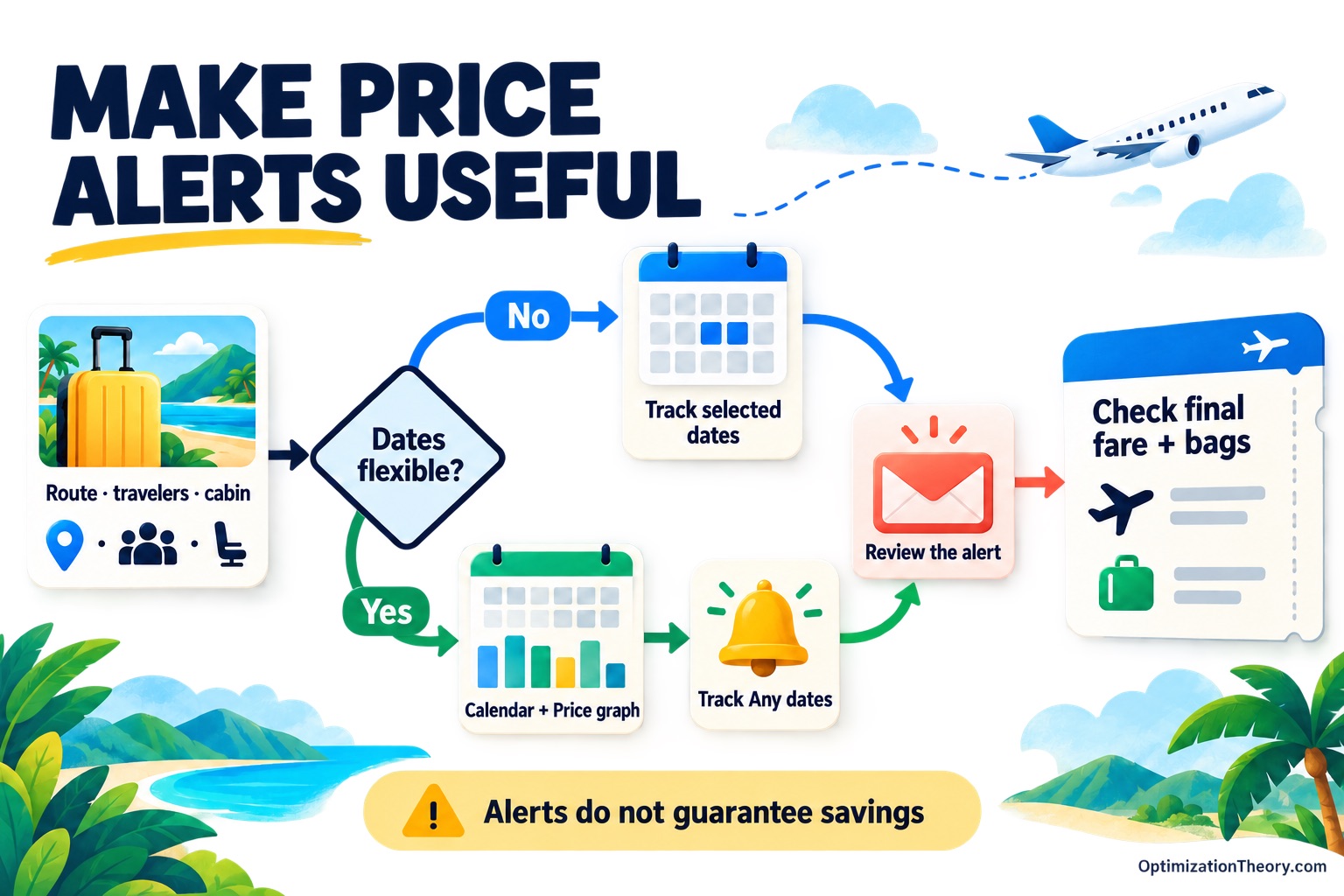
57Compare flight dates in the calendar
Set the route, passenger count, and cabin before checking Google Flights’ calendar. Google says calendar prices update approximately every 24 hours. See its flight-search instructions.
If your schedule allows, compare nearby departure dates while holding the trip length steady. Write down which combinations fit your actual availability. Otherwise, it is easy to compare an attractive midweek fare with a weekend itinerary you would realistically book. Recheck the selected journey before treating a calendar price as a final offer.
58Use the Google Flights Price graph for flexible dates
The Price graph helps explore fares across weeks or months. Google describes it as a flexible-date tool.
Use it to identify periods worth examining, then open the corresponding flights. Compare travel time, departure hours, and connection requirements alongside price. A lower bar may represent a journey you would find inconvenient. Decide in advance how much flexibility you have so the chart helps narrow the search instead of encouraging a series of trips you cannot take.
59Set up the Google Flights price tracker
Choose your route and preferences, then enable Track prices for selected dates, Any dates, or a specific flight. Alerts concern significant price changes. Google explains flight-price tracking.
Use selected dates when your leave is fixed; use flexible-date tracking when the timing is genuinely open. An alert is a prompt to review an offer, not a promise that booking later will be cheaper. Check the airline or booking provider’s final price, baggage rules, and conditions before purchasing.
60Find stops along a Google Maps route
In the Google Maps mobile app, enter your destination, choose Directions, then Add stops to explore places along the journey. Google explains this planning workflow.
Try it before a road trip when you need a lunch break or another practical stop. Inspect the detour and opening hours instead of choosing solely by rating. A highly rated café can still be a poor fit if reaching it adds a long diversion or it closes before your expected arrival.
How to Use Google AI Mode: Prompts, Comparisons, and Follow-Up Questions
Conversational search becomes more useful when your prompt describes a decision, its constraints, and the evidence you need. These six Google AI Mode prompts are templates you can adapt. Google documents follow-ups and several ways to supply context; the suggested wording below is editorial guidance. Read the supporting pages before using an answer to make an important decision.
61Compare options against the same requirements
Try: Compare A and B for [goal]. Replace the placeholders with two actual options and a specific purpose. For example, compare two laptops for carrying to evening classes, then request the same fields for both: weight, ports, battery-test conditions, and repair options. A consistent set of criteria makes gaps visible. Ask which facts came from manufacturer specifications and which came from independent testing.
62Give AI search a budget and clear priorities
Use Budget: [x]. Must have: [y]. after stating the task. Separate requirements from preferences: a desk may need to fit a measured space, while a particular finish is optional. Then ask the AI to flag any option that fails a requirement. Check the measurements and current price on the seller’s page before deciding. Being explicit about priorities makes the comparison easier to inspect.
63Ask for an explanation with one worked example
Try Explain [topic] with one example. Specify your starting knowledge: “Explain percentage points to a beginner, using a simple survey example.” If the explanation still feels abstract, ask it to walk through the calculation step by step. Reproduce the example yourself and compare it with a reliable reference. A concrete example gives you something to test instead of judging an explanation only by how fluent it sounds.
64Turn a broad task into a practical plan
Use Break [task] into clear steps. Include your deadline, available time, and relevant materials. For a weekend room reorganization, describe the furniture you already own and any items that must stay accessible. Ask for an order of operations and identify tasks that depend on earlier measurements. Review the sequence before starting so an attractive plan does not overlook a physical constraint.
65Explore trade-offs and missing information
Follow a recommendation with What are the limits and trade-offs? Then ask what additional evidence could change it. For a comparison of two train routes, you might need to distinguish a shorter scheduled journey from a connection with more transfer time. Review the relevant timetable yourself. This follow-up helps expose the assumptions behind a suggestion and turns uncertainty into a more specific research question.
66Request primary sources and verify their support
Ask Link primary sources for each claim. Define what primary means for the task: the original research paper, the manufacturer’s specification, the agency’s dataset, or the provider’s timetable. Open each source and locate the passage supporting the statement. If the link covers a different model, population, or period, ask for a correction. Requesting evidence is useful; assessing whether that evidence supports the answer remains your job.
Anatomy of a useful AI Mode prompt
Google Search Results: Sponsored Links, Source Checks, and Common Traps
A results page mixes different kinds of information and presentation. Slow down at the moment you choose a link or repeat a finding. These final checks help you identify the destination, understand what a page actually says, and describe the strength of the evidence accurately.
67Recognize paid placement
Look for Sponsored results and Sponsored products labels. Google explains its advertising labels. When shopping for running shoes, identify the seller behind each listing and compare the exact model, size, and return terms. Treat the advertising label as information about placement, then evaluate the offer on its own details before deciding whether it fits your needs.
68Read the real domain
Check the destination’s domain before entering account details or making a purchase. Google’s Chrome security guidance recommends checking the site name even on a secure connection. If you are trying to reach a university’s admissions office, compare the address with the institution’s known website. A secure connection protects the connection; assess the publisher’s identity and claims separately.
69Read beyond the search snippet
Google generates snippets automatically, and the excerpt can change with the query. Its snippet documentation explains this behavior. Open the page before quoting an answer. For a museum visit, the snippet might show an opening time without the surrounding holiday exception. Find the relevant section on the page and read the sentences around the detail you need.
70Trace a quotation to its speaker
Search a distinctive phrase in quotation marks, then look for the original interview, speech, book, or transcript. Include the speaker’s name if you know it. Before adding a quotation to a presentation, read what comes immediately before and after it. Record the original source and date so someone else can follow the same trail and check the context.
71Examine what a statistic measures
Before repeating a number, inspect its units, sample, population, and data period. Suppose a chart summarizes responses from a club’s newsletter subscribers: its findings describe those respondents, with limits on how broadly you can apply them. Read the chart notes and methodology. Also check whether a reported change uses percentages, percentage points, counts, or a different denominator.
72Label facts, estimates, and opinions clearly
When saving or sharing a finding, write down the source and describe the kind of statement you have. A measured survey result, a forecast, and a reviewer’s preference require different wording. For a trip plan, keep confirmed booking details separate from estimated travel times and personal recommendations. This makes later changes easier to track and helps other people judge what to rely on.
Google Search Tips FAQ: Operators, Images, and Better Results
What are the most useful Google Search operators?
Start with quotation marks for exact phrases, a minus sign for exclusions, site: for website searches, and filetype: for documents. Add before: and after: when the page’s update date matters. Uppercase OR supplies alternatives. Choose the operator that solves a problem in the current results, then add another restriction if necessary. Google’s refinement guide and Advanced Search form document these options.
Why does an exact-phrase search sometimes seem wrong?
Quotation marks can match words in less visible material, such as image descriptions or metadata, and a page may have changed since Google crawled it. Open the result, use your browser’s Find function, and inspect the context. If your remembered wording is uncertain, search a shorter distinctive phrase. Google explains these limitations of quoted searches.
How do I search Google by date?
Use an available time filter or add a window such as climate report after:2025-01-01 before:2026-01-01. The date restriction concerns the page’s update date. Check a report’s own reference period before calling its data recent. A page updated this month can still contain a table from several years ago. See Google’s date-operator instructions.
Do all Google Search commands still work?
Old search-operator cheat sheets can include discontinued features. Google’s documentation recorded that related: was unsupported in July 2023 and that cache: no longer worked in September 2024. Those are documentation notices, not a precise account of every user’s rollout. Read the official changelog.
For publisher-specific searches, use site:bbc.com. For title or URL restrictions, use the relevant fields in Advanced Search. Other legacy syntax missing from today’s consumer guide should not automatically be labeled retired. Related articles in Google Scholar remains a separate, supported feature.
What is the difference between Google Lens and reverse image search?
Reverse image search describes starting a search with an image. Google Lens is one way Google lets you do that, with tools for selecting an object, adding a question, copying text, and translating visible words. Upload an image on a computer or open Lens in the Google app on your phone. Google’s image-search instructions explain the available paths. A similar image is a lead to investigate, not proof that two objects are identical.
Where is Google Advanced Search?
Open google.com/advanced_search directly. Google also describes an Advanced Search option under Search’s Tools, where available. The form is helpful when you want to specify an exact phrase, alternatives, exclusions, a language, or where words appear without memorizing their search syntax. See the current navigation guidance.
Can I use Google Search without AI Overviews?
After searching, choose the Web filter to view text-based website links without features such as AI Overviews. This changes the results view for the search; it is not a promise of a universal account-level switch. Filter placement and availability can vary. Google explains the Web filter here.
Why do advanced Google searches return too few results?
Remove one restriction at a time. Start with the quoted phrase, date window, file format, or website limit you added most recently. Try a broader term, then inspect the vocabulary used by relevant sources. A site: query is not an exhaustive list of a website’s pages, so try the publisher’s own navigation when you already know where the material should be. Google documents that retrieval limit.
Your next search
Pick one real task and apply the smallest useful change to your next search. Save the query that worked, open the underlying source, and keep the relevant date or version with your notes. The infographic gives you a visual reminder; the examples above help you decide which technique to use and how to judge what comes back.
Product guidance and linked sources were checked October 26, 2026. Features and interfaces vary by country, language, device, account, and query. Examples are instructional; they do not supply live weather, exchange rates, fares, or delivery status.
More Writing & Research by Jourdan Rombough
View all research


If AI can't find you, understand you and trust you, it won't recommend you.
Keywords tell you what they typed. Intent tells you what they meant. Fan-out tells you what they'll ask next.
Be a thing, not a string. AI remembers entities, not keywords.
The click isn't dead. It just has to be earned twice.
Schema is the business card you hand to every machine that reads your site.
If Googlebot can't reach it and AI can't parse it, it doesn't exist.
Good SEO grows quietly. Then all at once.
